
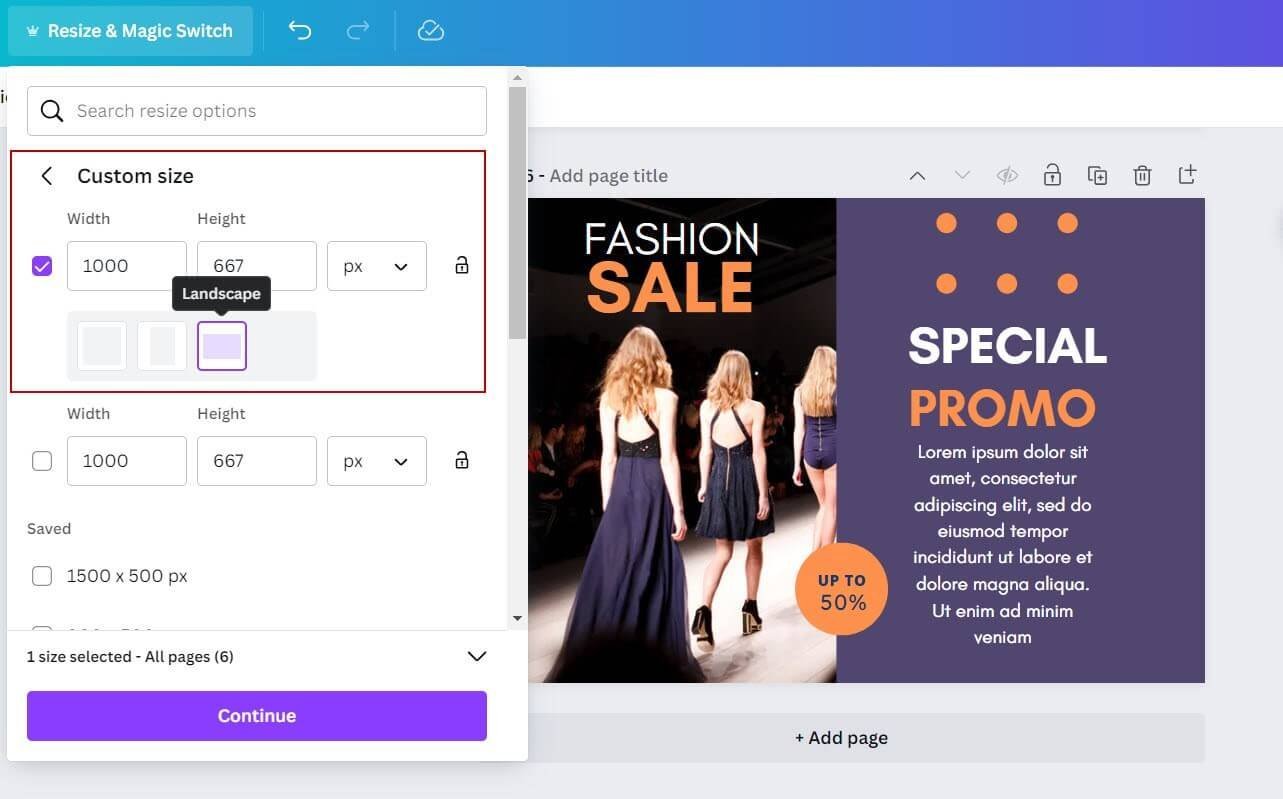
To make a page landscape in Canva, simply follow these quick steps. First, open your Canva project and locate the page you wish to change. Then, click on the “Resize” button in the top menu bar. Next, select the desired orientation, choose landscape, and voilà! Your page is now in landscape mode, ready for your creative touch. Making page landscape in Canva is a breeze and can enhance the overall layout and design of your project effortlessly. Try it out today!

How to Make Page Landscape in Canva: A Step-by-Step Guide
Welcome to our comprehensive guide on how to make a page landscape in Canva. Canva is a user-friendly graphic design platform that offers a plethora of tools and features to help you create stunning designs for various purposes. Whether you’re working on a presentation, flyer, social media post, or any other project, knowing how to switch your page orientation to landscape in Canva can be incredibly useful. In this article, we’ll walk you through the process step by step, so you can easily transform your designs into beautiful landscape layouts.
Getting Started with Canva
Before we delve into the specifics of making a page landscape in Canva, let’s first familiarize ourselves with the platform. Canva is a popular online design tool that offers a wide range of templates, elements, and customization options. To begin, you’ll need to create a free Canva account or log in if you already have one. Once you’re logged in, you can start a new design from scratch or choose a template to work with.
Creating a New Design
To create a new design in Canva, simply click on the “Create a design” button on the homepage. You’ll be prompted to select a design type or enter custom dimensions. For our purposes, we’ll be creating a custom-sized design to set the page orientation to landscape.
Step 1: Setting Custom Dimensions
After clicking on “Create a design,” choose the “Custom dimensions” option. Here, you can enter your desired dimensions for the design. To make your page landscape, ensure that the width is greater than the height. For example, you can set the dimensions to 1920px width by 1080px height for a standard landscape layout.
Step 2: Designing Your Layout
Once you’ve set the custom dimensions for your design, you can start creating your layout. Canva provides a wide range of tools, including text options, shapes, images, backgrounds, and more. Feel free to explore the elements available and customize your design to suit your needs.
Changing Page Orientation to Landscape
Now that you’ve created a custom-sized design, let’s focus on changing the page orientation to landscape. Follow these simple steps to switch your design from portrait to landscape mode:
Step 1: Selecting the Design
Locate the design you’re working on in Canva and click on it to open it in the editor. You should see your design canvas displayed on the screen.
Step 2: Accessing Page Settings
At the top right corner of the editor, you’ll find the “File” menu. Click on “File” and a dropdown menu will appear. Select “Page Setup” from the dropdown menu to access the page settings.
Step 3: Choosing Landscape Orientation
Within the Page Setup menu, you’ll see options for page orientation. By default, Canva sets the orientation to portrait. To change it to landscape, simply click on the “Landscape” option. Your design canvas will instantly switch to landscape orientation, allowing you to view and edit your design in the new layout.
Step 4: Adjusting Elements
Once your page orientation is set to landscape, you may need to adjust the placement and size of elements within your design. Simply click on the elements you want to edit and drag them to reposition them accordingly in the landscape layout.
Enhancing Your Landscape Design
Now that you’ve successfully switched your page to landscape orientation in Canva, it’s time to enhance your design further. Here are some tips to make your landscape layout more visually appealing:
1. Use Background Images
Consider adding a captivating background image to fill the space in your landscape design. Canva offers a vast collection of high-quality images that you can use to enhance the visual impact of your layout.
2. Experiment with Text Styles
Play around with different text styles, fonts, and colors to make your text elements stand out in the landscape layout. You can also use text effects and gradients to add depth to your design.
3. Incorporate Visual Elements
Mix and match shapes, icons, illustrations, and other visual elements to create a dynamic and engaging landscape design. Canva provides a variety of graphics that you can easily drag and drop into your layout.
Exporting Your Landscape Design
Once you’re satisfied with your landscape design in Canva, it’s time to export your work for sharing or printing. To export your design, follow these steps:
Step 1: Saving Your Design
Click on the “Download” button located at the top right corner of the editor. Select the file format you prefer (e.g., JPG, PNG, PDF) and click on the “Download” button to save your design to your computer.
Step 2: Sharing Your Design
If you want to share your landscape design directly from Canva, click on the “Share” button. You can generate a shareable link to send to others or collaborate on the design with team members.
Congratulations! You’ve learned how to make a page landscape in Canva and create stunning designs with ease. By following the step-by-step guide and exploring different design elements, you can unleash your creativity and craft visually appealing landscape layouts for various projects. Remember to experiment, have fun, and let your imagination soar as you create beautiful designs in Canva!
Now that you’re equipped with the knowledge and skills to transform your designs into landscape masterpieces, go ahead and start creating your next eye-catching project in Canva. Happy designing!
How to Change to Landscape in Canva
Frequently Asked Questions
How can I change the orientation of my page to landscape in Canva?
To make your page landscape in Canva, you can simply click on the “File” menu at the top left corner, then select “Page Setup.” Here, you will find the option to switch the orientation from portrait to landscape. Click on the landscape option, and your page will now be in landscape mode.
Is it possible to switch between portrait and landscape orientation multiple times in Canva?
Yes, you can switch between portrait and landscape orientation as many times as you need in Canva. Simply follow the same steps mentioned earlier by clicking on “File,” then “Page Setup,” and choosing the desired orientation. You can switch back and forth between portrait and landscape mode effortlessly.
What should I do if my content gets misaligned after changing to landscape mode in Canva?
If your content appears misaligned after switching to landscape mode in Canva, you can easily readjust it by selecting the elements and dragging them to the correct position. Canva provides intuitive tools to help you align and arrange your content precisely, ensuring everything looks perfect in landscape orientation.
Final Thoughts
To make a page landscape in Canva, simply go to “File,” then “Page Setup,” and select “Orientation” as landscape. This easy adjustment allows you to create visually appealing designs suited for wide formats. In conclusion, changing the page orientation to landscape in Canva is a quick and effective way to enhance your design layout. Try it out for your next project to see the impact it can have on your visuals.